
Add an expense and split it unevenly
Updated
An expense records what someone paid and who shares it, and everyone’s balance updates at once. Any member can add one, and can edit or delete any expense they can see.
- Open the event’s expenses and tap the add button.
- Type the amount, then a short description.
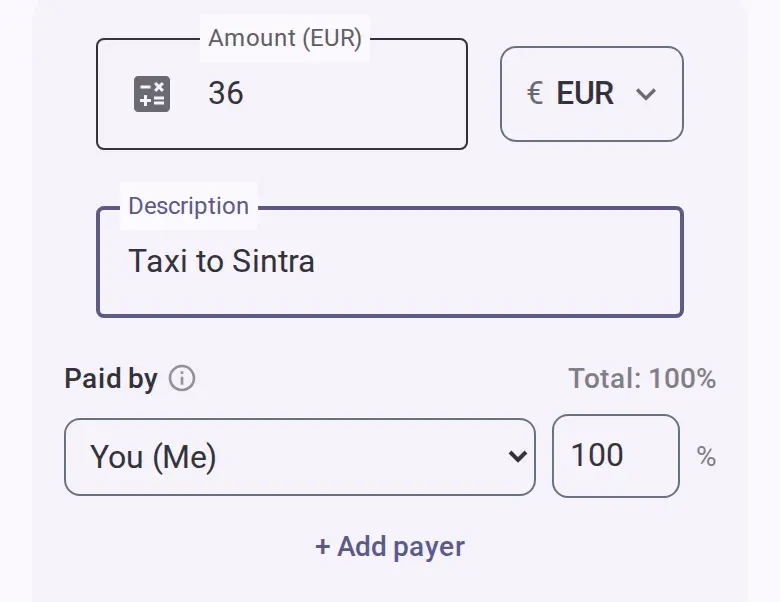
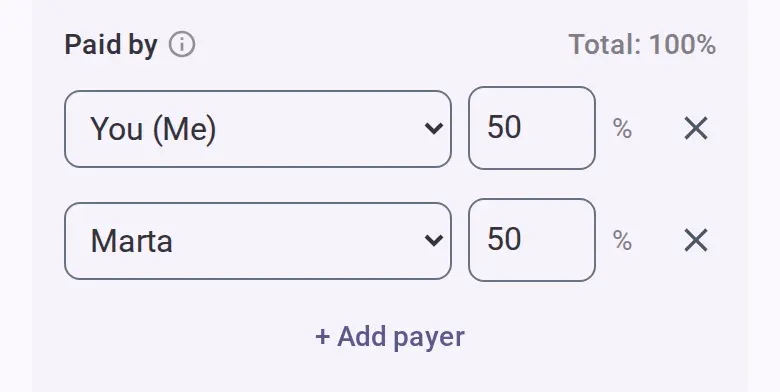
- Check who paid. It starts as you. If several people paid, use the add-payer button and set
each person’s percentage. They must add up to 100%, and they even out on their own until you
type one yourself.
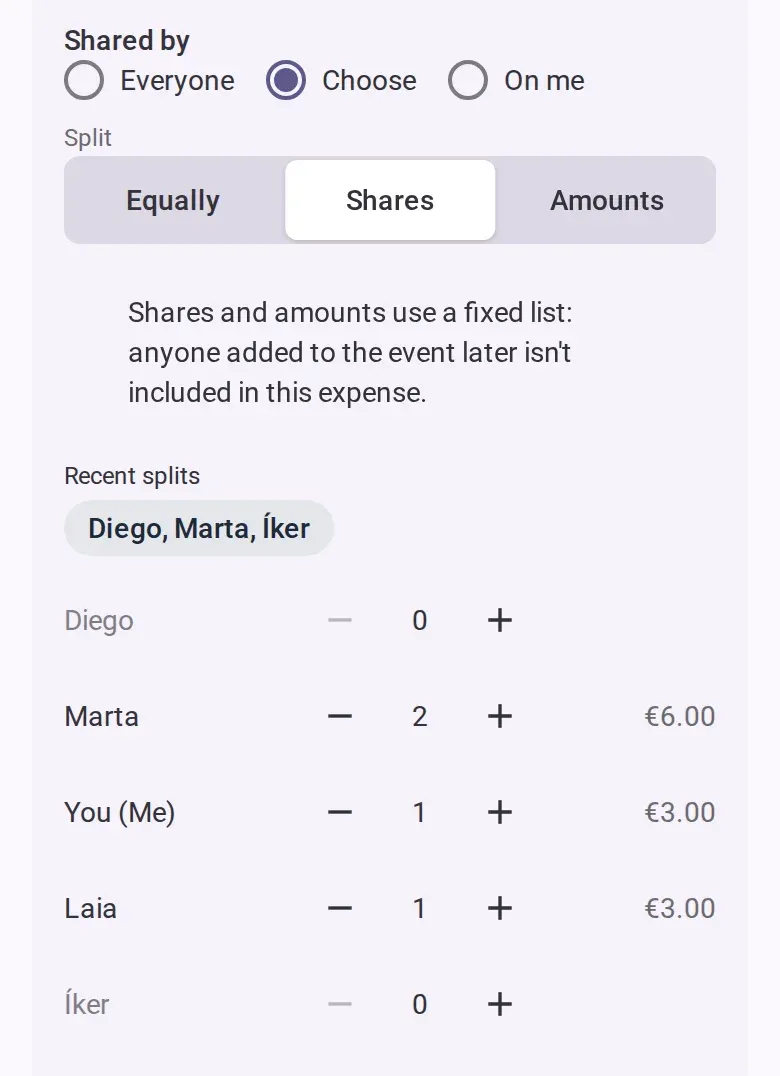
- Choose who shares it: everyone, people you pick, or only you. If only you, nobody owes anything.
- Choose how it divides, with the split options below who shares it:
- Equal split: everyone on it pays the same. This is the default.
- By shares: give each person a number of shares with the minus and plus buttons. Someone who
had twice as much gets 2, and 0 means they are not on it. What each person pays shows beside
their name.
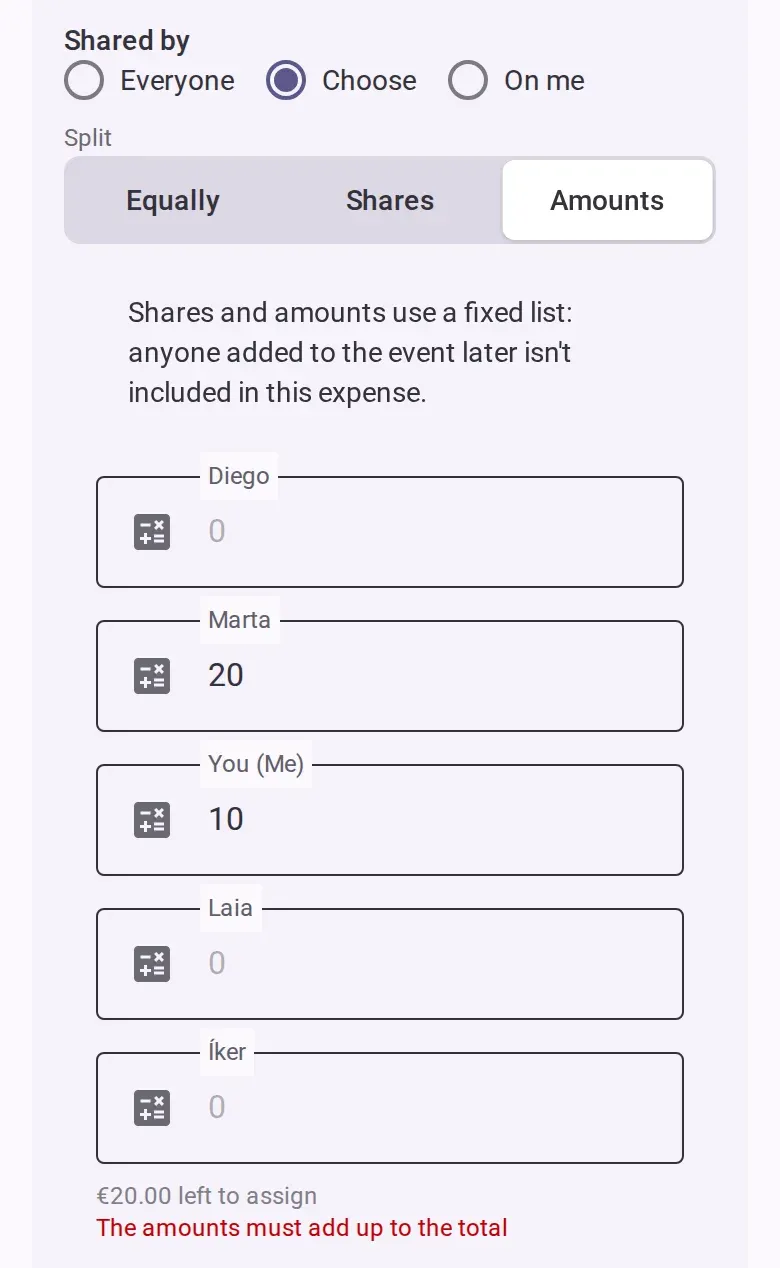
- By amounts: type what each person pays. A line shows how much is left to assign, or how much
you are over. The amounts must add up to the total.
- Add any extras: a share someone took home (not with amounts), the date spent, a note, a category or tags.
- Save the expense.
If the money came from a kitty, add the expense as paid by the collector. See Collect a kitty before the trip.
Change or delete it
Tap an expense to open it, change it and save. To delete it, use the delete button in the form, or press and hold the expense in the list and choose delete. Then confirm. An undo button appears for a few seconds after. Edits have no undo, but the expense’s history shows every change.

Who can do this
- Members, co-hosts and admins can add, edit and delete. View-only people can only read.
- Once the event is settling or archived, expenses are read-only. Adding one asks you to reopen the event first.
- Offline, you can add an expense and it is sent when you are back online. Editing and deleting need a connection.
Good to know
- Each share is rounded to the currency’s smallest unit, such as the cent, and the shares always add up to the total. In an equal split, an extra cent goes to the person who paid, if they share it.
- Splitting by shares or by amounts uses a fixed list of people: someone added to the event later is not on this expense.
- If someone’s dates in the event don’t cover the date spent, an expense shared by everyone leaves them out. The form tells you who.
- On a saved expense you can attach up to three receipt photos. Adding them needs the Event Pass; seeing them does not.
- Saving a split as the default for new expenses needs the Event Pass.
- See also Expenses in another currency, Private expenses and Settle up.