
Wrap up, settle and close the books
Updated
When the event is over, you can take it through three stages: a final review, settling, and closing the books. Any member can do each step, not only the host. Every step is optional and can be undone, and each one shows in the activity log with the name of who did it.
- Wait for the nudge, if you like. When most of the to-do list is handled and the group has shared expenses, a banner suggests the review. Tap it to open the settle tab.
- Tap the start-review button on the settle tab, and confirm. Nothing is locked
yet: everyone can still add and edit expenses.
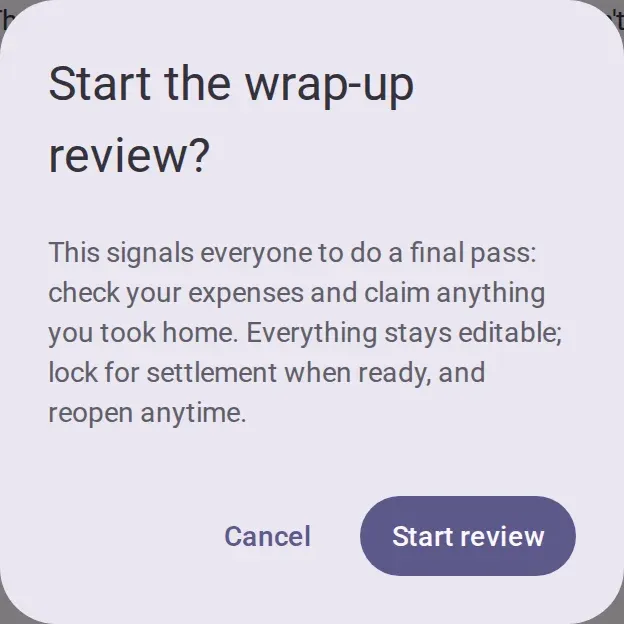
- Ask everyone to do a final pass: check their expenses and claim anything they took home.
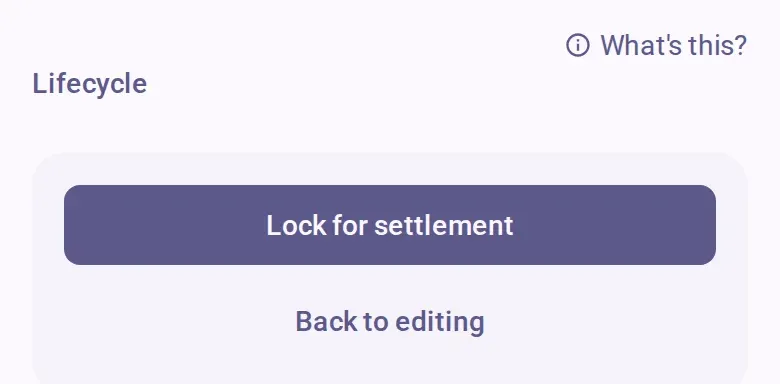
- Tap the lock button and confirm. If expenses are still marked for review, the dialog says
how many. Expenses and the to-do list are now read-only, and nobody can join through the link or
be added.
- Pay each other and mark payments received. See See what you owe and mark a payment received.
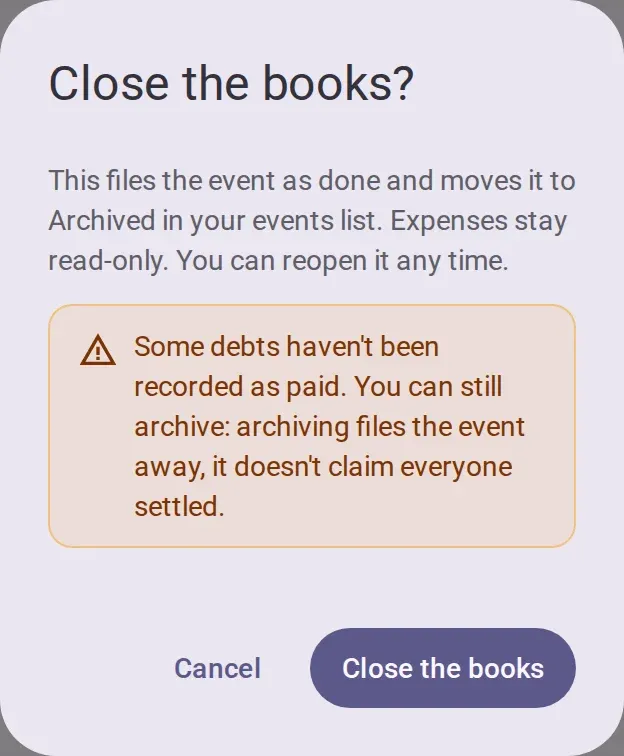
- When everyone is paid, a banner asks if you are ready. Tap the close-the-books button and
confirm. If you still have open debts, the dialog warns you, but you can go ahead: closing the
books does not claim that everyone paid.
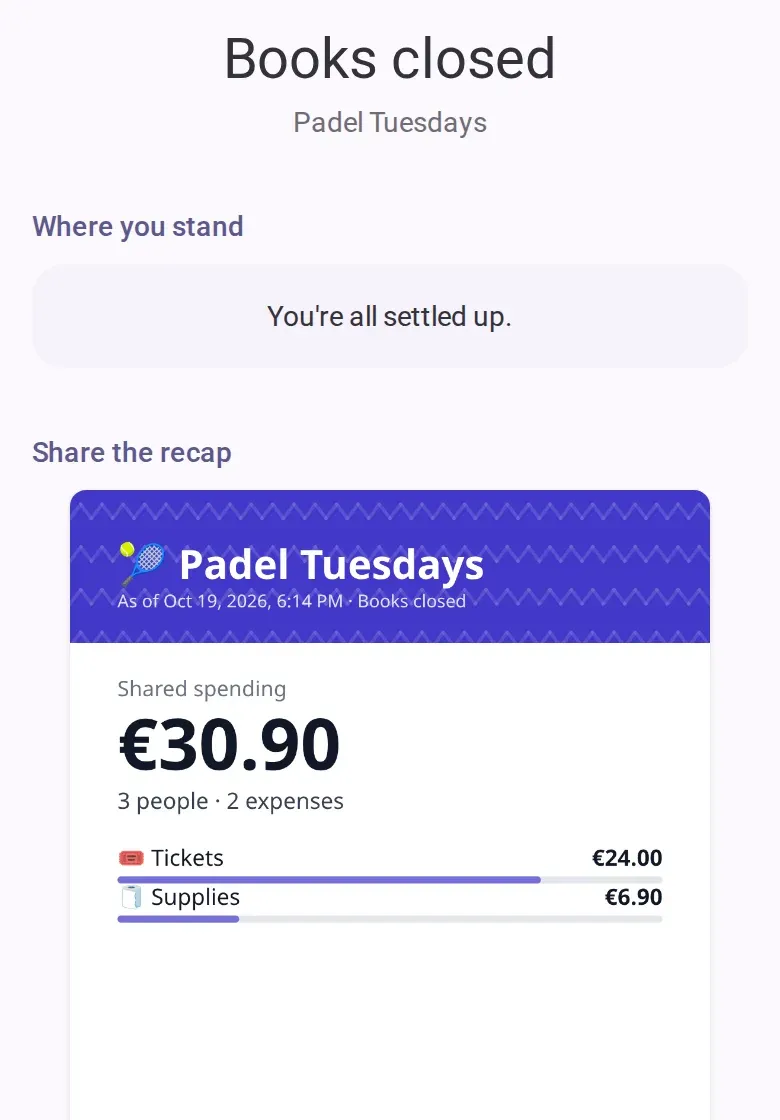
- A full-screen sheet shows where you stand and a recap card to share. Everyone else sees it the
next time they open the event. The event moves to your past events.
Reopen the event
Tap the reopen button on the settle tab or in the event’s settings, and confirm. The event goes back to active and everything is editable again. Recorded payments are kept and balances update.
Good to know
- You can close the books from any stage, from the event’s settings. Expenses become read-only from then on.
- After the books are closed, people can still record a payment.
- View-only people do not see these controls.
- The recap card is free. Exporting the expenses as PDF or CSV is part of the Event Pass.
- Private expenses stay private at every stage: see Private expenses and who sees what.
- To fix an expense after locking, reopen first, then edit it.
If you’re offline
All of these steps need a connection.