
The to-do list: who brings what
Updated
The to-do list is one shared list of things to do, bring or book. Each to-do shows who is on it, what it cost and whether it is done.
- In the event, open the checklist tab. The first time, a short intro explains it. You can dismiss it.
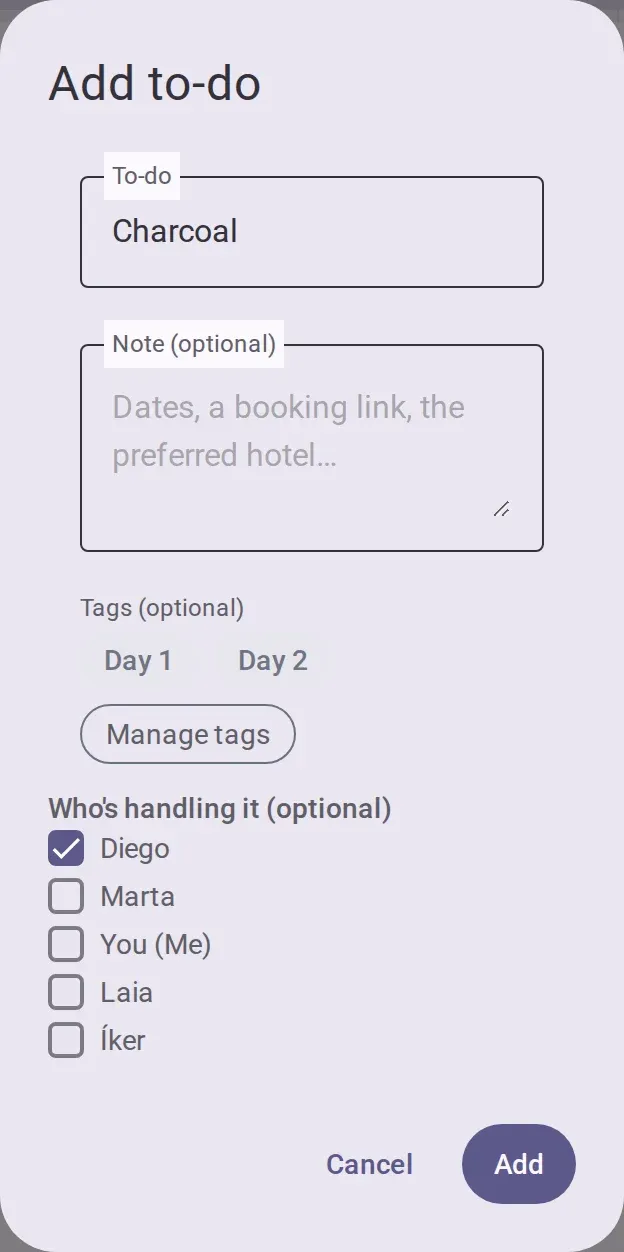
- Tap the add button. Type the to-do. If you want, add a note, tags, and who is handling it.
Then add it.
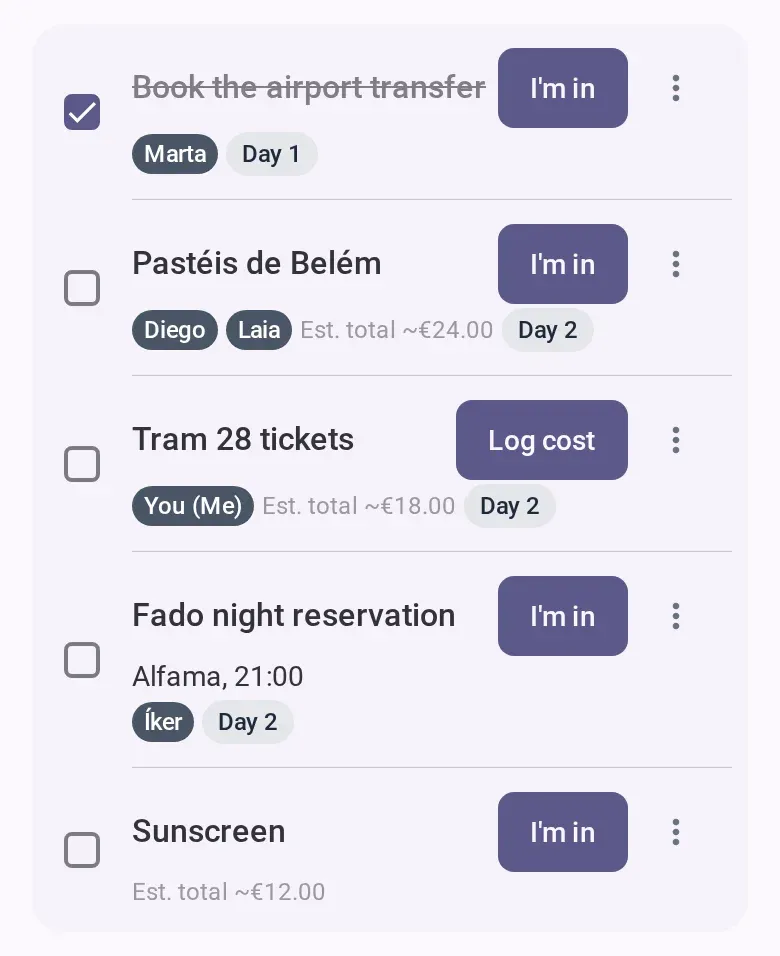
- To put your name on a to-do, tap the join button on its row. Several people can be on one
to-do, and their names show under its title.
- To put someone else on it, or take them off, open its more-actions menu, choose edit, tick or untick people, and save.
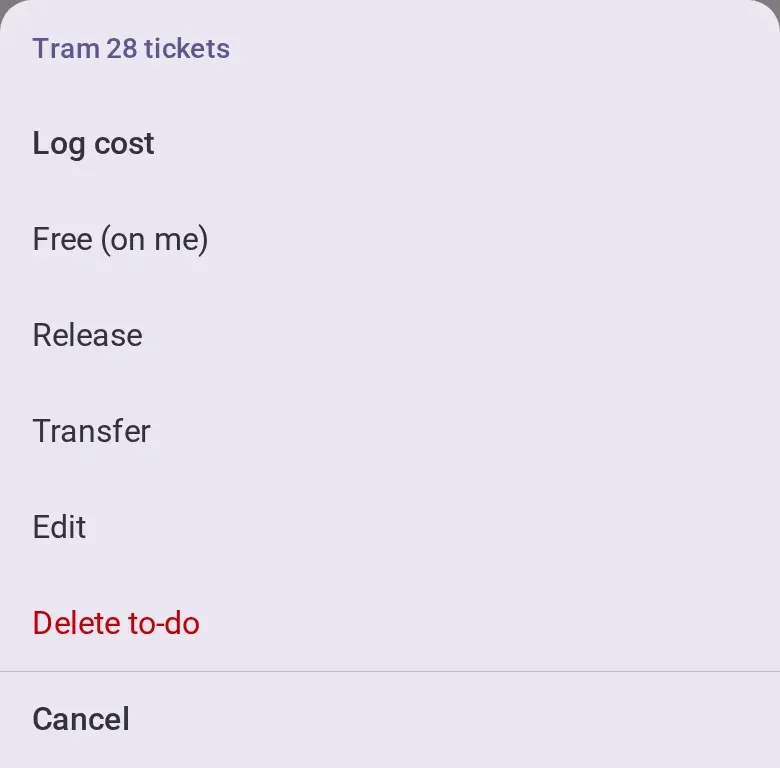
- For other actions, open the more-actions menu, or press and hold the row. What you see
depends on whether you are on the to-do: log a cost, mark a share free, release or transfer your
spot, set an estimate, edit or delete.
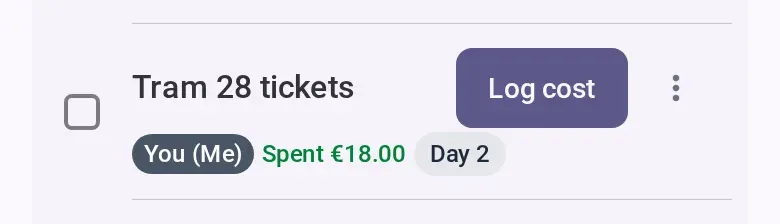
- To log what it cost, choose log a cost. The same form as for any expense opens, with you as the
payer and the estimate as the amount the first time. Save it, and the row shows what was spent.
See Add an expense.
- When it is handled, tick the checkbox on its row. The title is struck through. A count of done to-dos and a button to hide them appear.
Who can do this
- Members, co-hosts and admins can do everything on the list, for themselves or for anyone.
- View only: you can see the list. The only thing you can do is release a to-do you are on.
- Once the event is settling or archived, the list is read-only. See Wrap up, settle and close the books.
If you’re offline
You can add a to-do, edit it, set an estimate and tick it. These are sent when you are back online. Joining, releasing, transferring, changing who is on a to-do and deleting need a connection. So do marking someone else’s share free, and marking yours free once you logged a cost on it.
Good to know
- Being on a to-do says nothing about paying. Anyone except view only can log a cost on any to-do, and logging a cost does not put you on it. A to-do can have several costs, and they are never private.
- Marking your share free means you handled it at no cost, and you can undo it from the same menu. If you already logged a cost on that to-do, the app asks first, then deletes your cost.
- An estimate is only for planning. It feeds the budget forecast, never the balances.
- Deleting a to-do keeps its costs in the expenses. An undo button appears for a few seconds.
- There are no quantities: put “three bags of ice” in the title or the note.
- Use the filters button to search, or to filter by person, tag, not claimed or not done.
- Leftovers someone took home are recorded in the expense form that logging a cost opens, not on the list.
- To put someone who has not joined yet on a to-do, first add them.