
Create an event and invite people
Updated
Anyone can create an event, with no account. You become the event’s host, with the admin role, and you get one link that lets everyone else join.
- Open CabuTally and, on your events list, tap the add button.
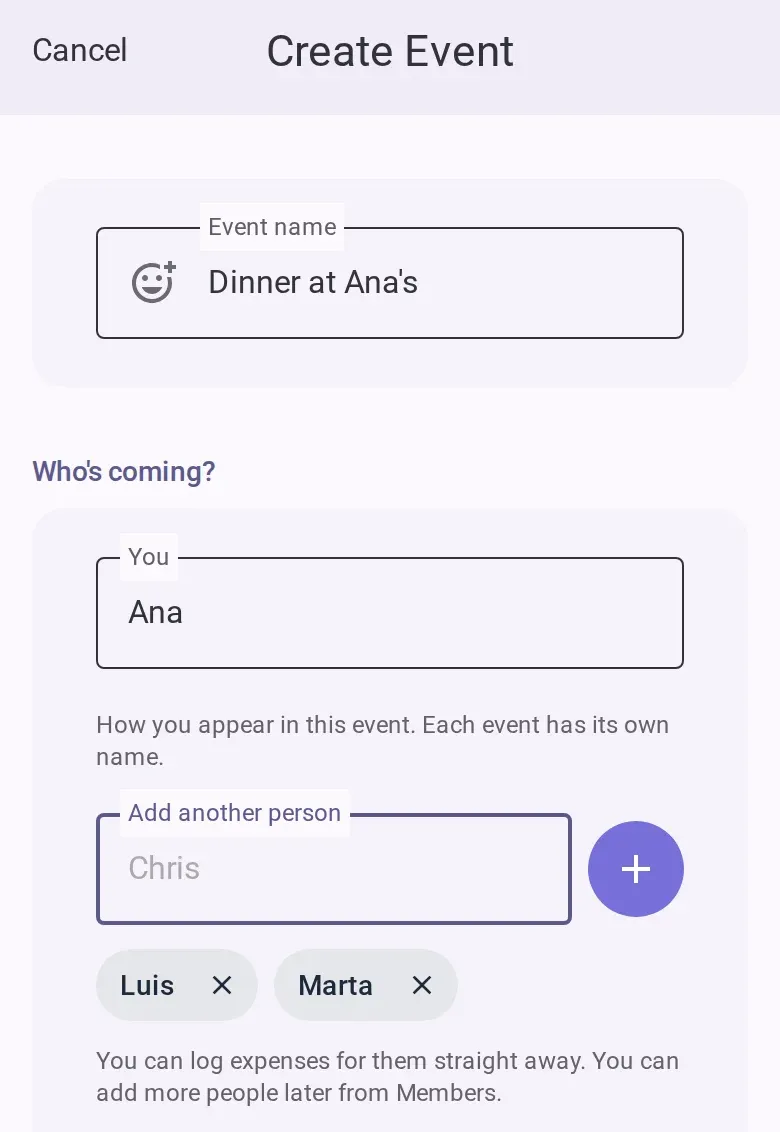
- Type the event’s name. You can also pick an emoji for it.
- In the people section, type your own name in the row for you. This is how you appear in this event only.
- For each other person coming, type their name in Add another person and press Enter, or tap
the add button beside the field. Each name becomes a chip below it, and each must be
different. Tap a chip to edit the name, or its cross to remove it.
- Check the currency. If you want, set a budget target. It is a goal to track, not a limit: expenses can go over it. Under Extra details you can also add a date, a place, a map link and notes.
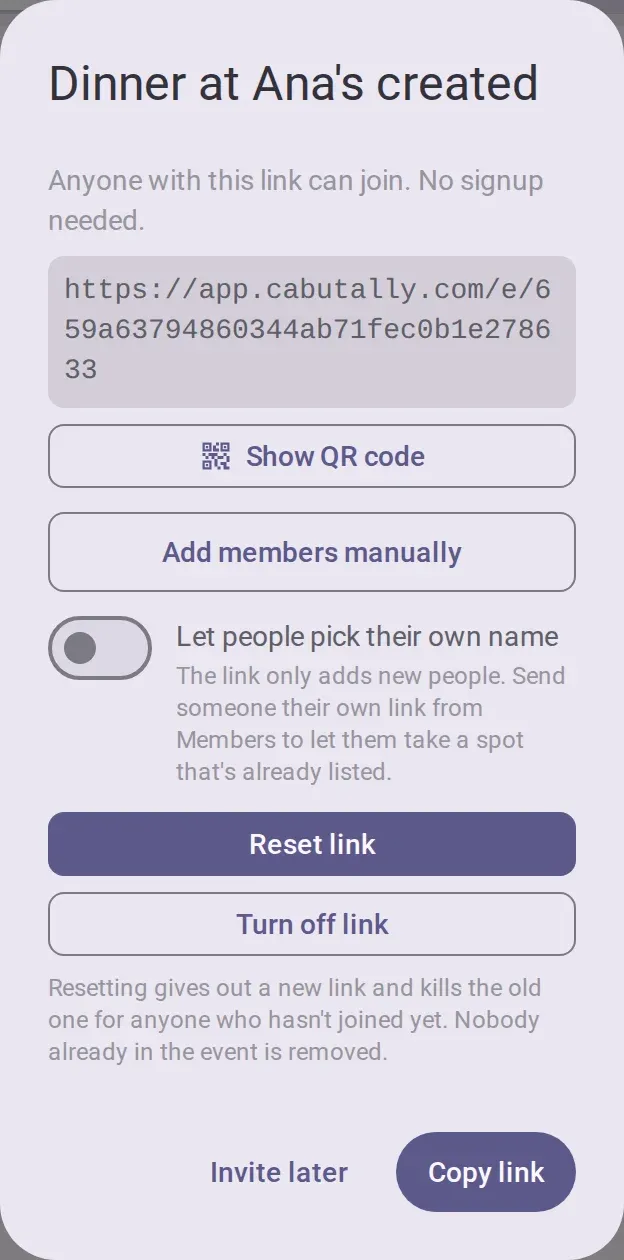
- Tap the create button. The new event opens, with a share dialog that shows the invite link.
- If you added other people in step 4, choose whether the link lets them pick their own name from
the list. This setting is off for a new event.
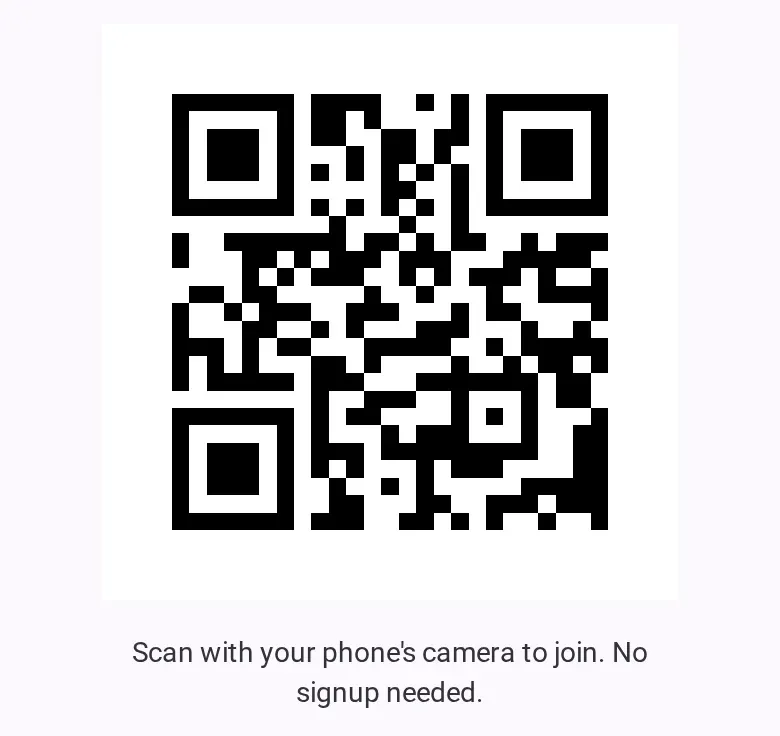
- To invite people in person, tap the QR code button and let them scan it with their phone’s
camera.
- Tap the share button to send the link through your phone’s share options, for example to your group chat. Where there are no share options, the button copies the link.
You can also close the dialog and invite people later. The event’s share button opens the link, the QR code and the reset and turn-off controls again. The setting that lets people pick their own name is then in the event’s settings.
Who can do this
- Anyone in the event, whatever their role, can share the link or show the QR code.
- Only a co-host or admin can reset the link, turn it off, or change the setting that lets people pick their own name from the list. The name setting cannot be changed once the event is archived.
The people you added
The people you add when you create the event are placeholders: you can log expenses for them before they join. While the setting that lets people pick their own name is off, the shared link only adds new people and does not show the list. Each placeholder then takes their spot through their own personal link. See Add people who haven’t joined yet.
Reset or turn off the link
- Reset gives the event a new link. The old link and any photo of the old QR code stop working for people who have not joined yet. Nobody already in the event is removed, and personal links are not affected.
- Turn off stops anyone new from joining through the shared link until you reset it. Everyone already in stays, and personal links you sent to people you added keep working.
If you’re offline
You can fill in and create an event offline. The sheet waits until the connection comes back, then creates the event and opens it. Resetting the link, turning it off and changing the name setting need a connection.
Good to know
- A free event holds up to 8 people, you and the people you added included. An Event Pass raises it to 50.
- Once the event is settling or archived, the link no longer adds new people.
- For what your guests see, see Join an event without an account.