
Scan a ticket instead of typing it
Updated
A scan turns a photo of a receipt into the lines of a bill, so you only have to check them. It is a shortcut for Split a restaurant bill line by line, and typing the bill in is always available.
- Open the app’s Bills screen. With no bills yet, tap Scan a
ticket.
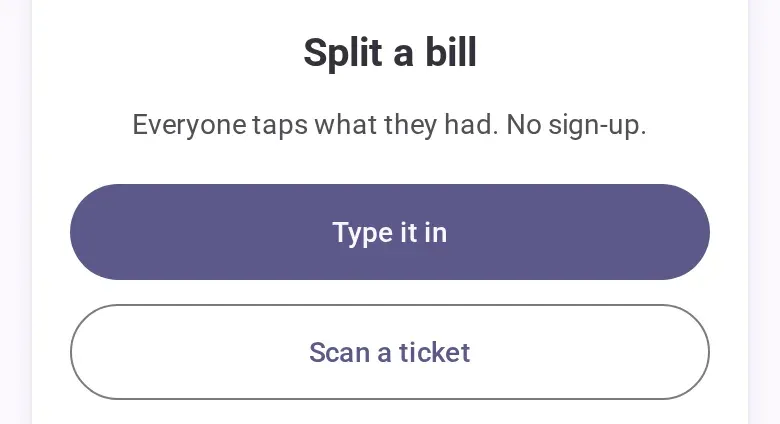
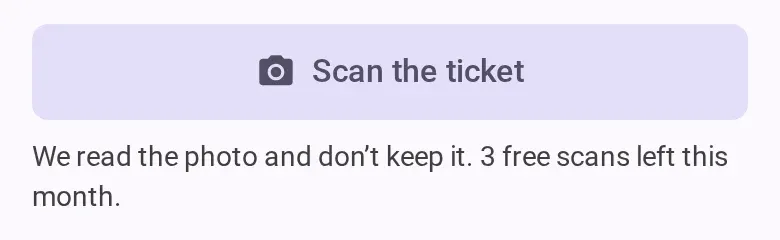
- If you already have bills, tap Split a bill. The first step shows Scan the ticket until
you type a line. The line under it says how many free scans you have left this month, before
you take the photo.
- Take a photo of the whole ticket, flat and in good light, or choose one from your gallery.
- Wait about five seconds. The app opens the second step with the lines, their quantities, the place as the bill’s name, the ticket’s currency and, when there is a tip, a service charge or a discount, the total paid.
- Check the lines against the paper. Tap a line to change or remove it. If the lines do not add up to the ticket’s total, a warning at the top tells you to check them.
- Type your name and tap Create and share, as when you type the bill in.
How many scans you get
- Each person has 3 free scans a month. With an account, they count across your devices.
- A photo the app could not read does not count. A second photo of a ticket that was read does.
- CabuTally Pro scans without a limit. In an event with an Event Pass, its members scan without the monthly limit.
- At zero, the scan button is off and the line under it says the day your scans come back. Type the bill in, or let someone at the table with scans left take the photo.
What happens to the photo
- Your phone shrinks the photo and sends it to CabuTally’s own server, which has it read by Claude, an AI model from Anthropic. Anthropic may process it outside the European Union.
- CabuTally keeps neither the photo nor the text read from it. What is saved is the bill you share.
- CabuTally keeps a count of your scans: who scanned, in which event if any, and when. The privacy policy has the detail.
- A scan is not a receipt photo. To keep a photo on an expense, see Add an expense.
Good to know
- The read is a draft for you to check, not a final answer: faded or creased paper can cost it a digit.
- A ticket in another currency than the event’s shows the same warning. The amounts are not converted for you.
- A ticket with more than 39 lines is not read. Split it into two bills.
- If the photo cannot be read, try again closer and flatter, or type it in.
- An event allows 3 scans an hour. On a very busy day the app may say scanning is resting for today, and typing still works.
- Inside an event the scan keeps the event’s currency. A new bill takes the ticket’s.
If you’re offline
Scanning needs a connection.